
 Electrical preheating
 EV charging solutions
 Lighting
 Chargers and Inverters
 Security & Tracking
IoT Console – Company registration
If you don’t already have a user account you need to create an account. Go to this page
Below you account settings you can link a company to your profile.
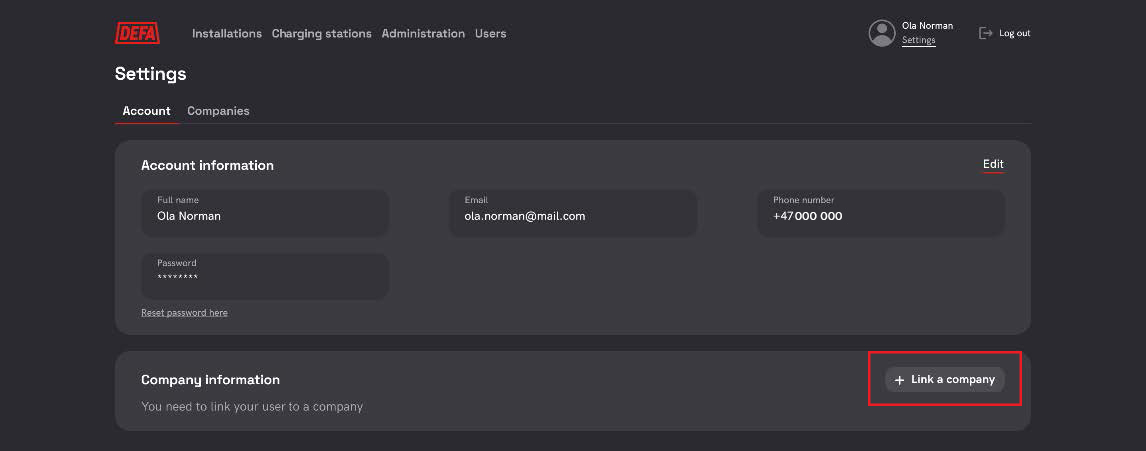
From here you can link your profile towards an existing company already registered with us or create a new company application.
To apply towards an existing company, follow step 1. Request access to existing approved company.
To apply with a new company, follow step 2. Send company application.
1. Request access to an existing approved company
From your profile settings page. Start the process by clicking + Link a company. A pop-up should appear.
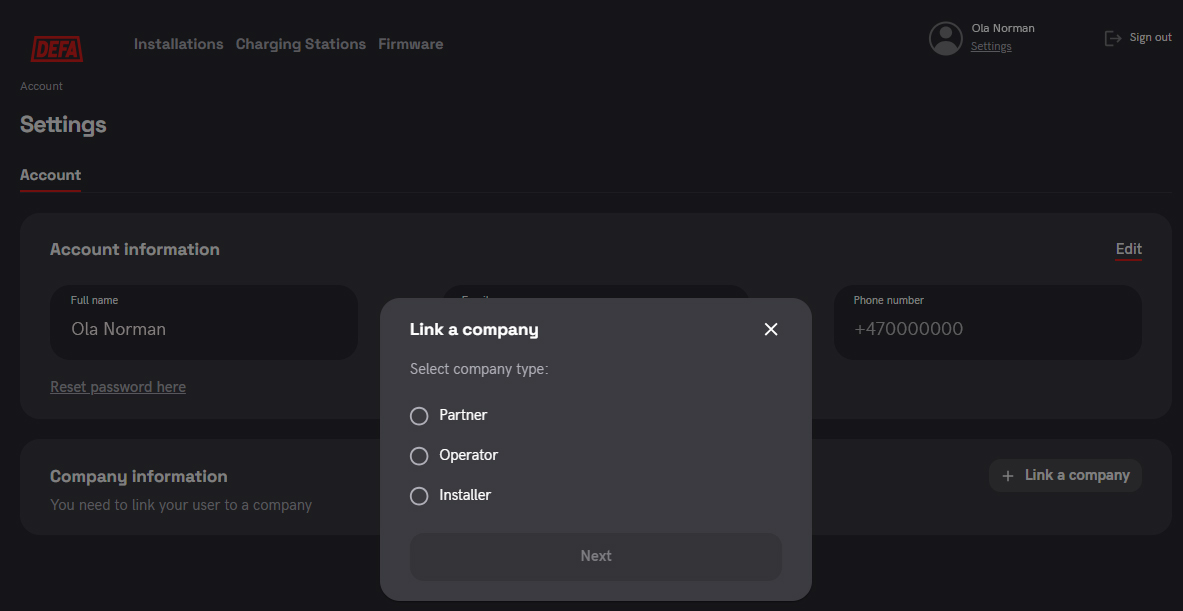
- Select company type (See definition of company types below)
- Search for the company name. The company should appear in the dropdown list.
- Select the company and click apply.
The company administrator will now receive a notification of your user profile requesting access to the company. They will Accept or Reject your application to the company. You should get a email as soon as this is done. Once this is done you can start using the portal. See separate manual on how to use the portal.
Definition of company types:
- Partner: The wholesaler or distributor of the product
- Charge Point Operator (CPO): The operator if which supports this charging station towards the CSMS
- Installer / Electrician: The installer or electrician who has installed the prduct.
2. Send company application
From your profile settings page. Start the process by clicking + Link a company. A pop-up should appear.
- Select company type (See definition of company types abow)
- Start by searching for your company name. If the name doesn’t appear the Create company at the bottom becomes clickable.
- Click the create company.
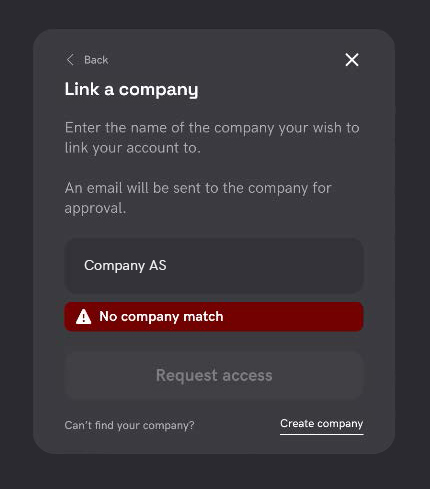
- Register the company details of your company.
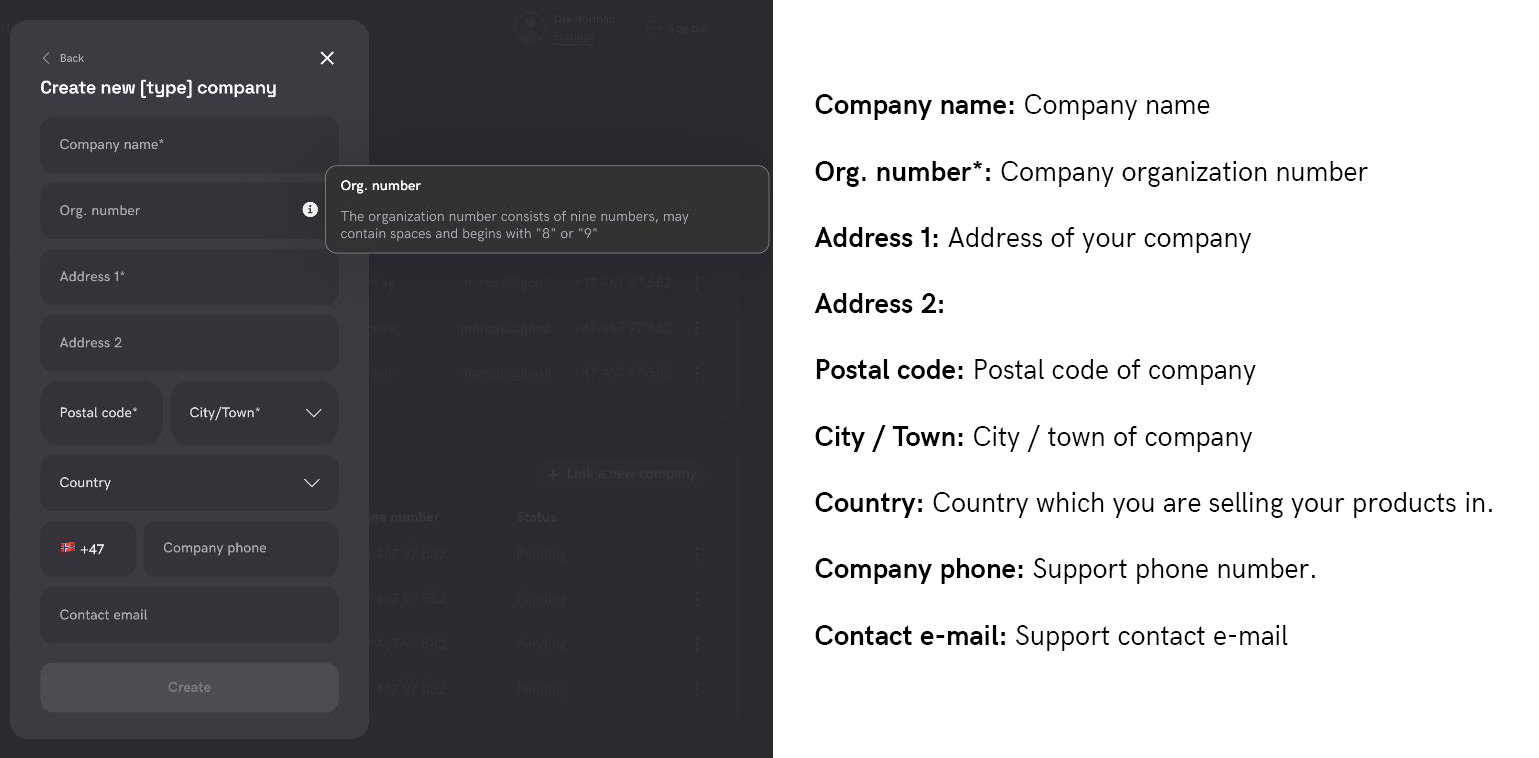
*Org. number – Organization number of the company you’re applying with. The organization number consists of nine numbers, may contain spaces and begins with 8 or 9. If you’re uncertain about the organization number you can edit this later. - Click Create once all details have been entered.
The company application, including your user as the administrator of the company has been sent to DEFA for evaluation. For quicker access, please contact your DEFA contact point for approval.You should get an e-mail from us as soon as your application goes through. Once this is done you can start using the portal. See separate manual on how to use the portal.
Rejected application?
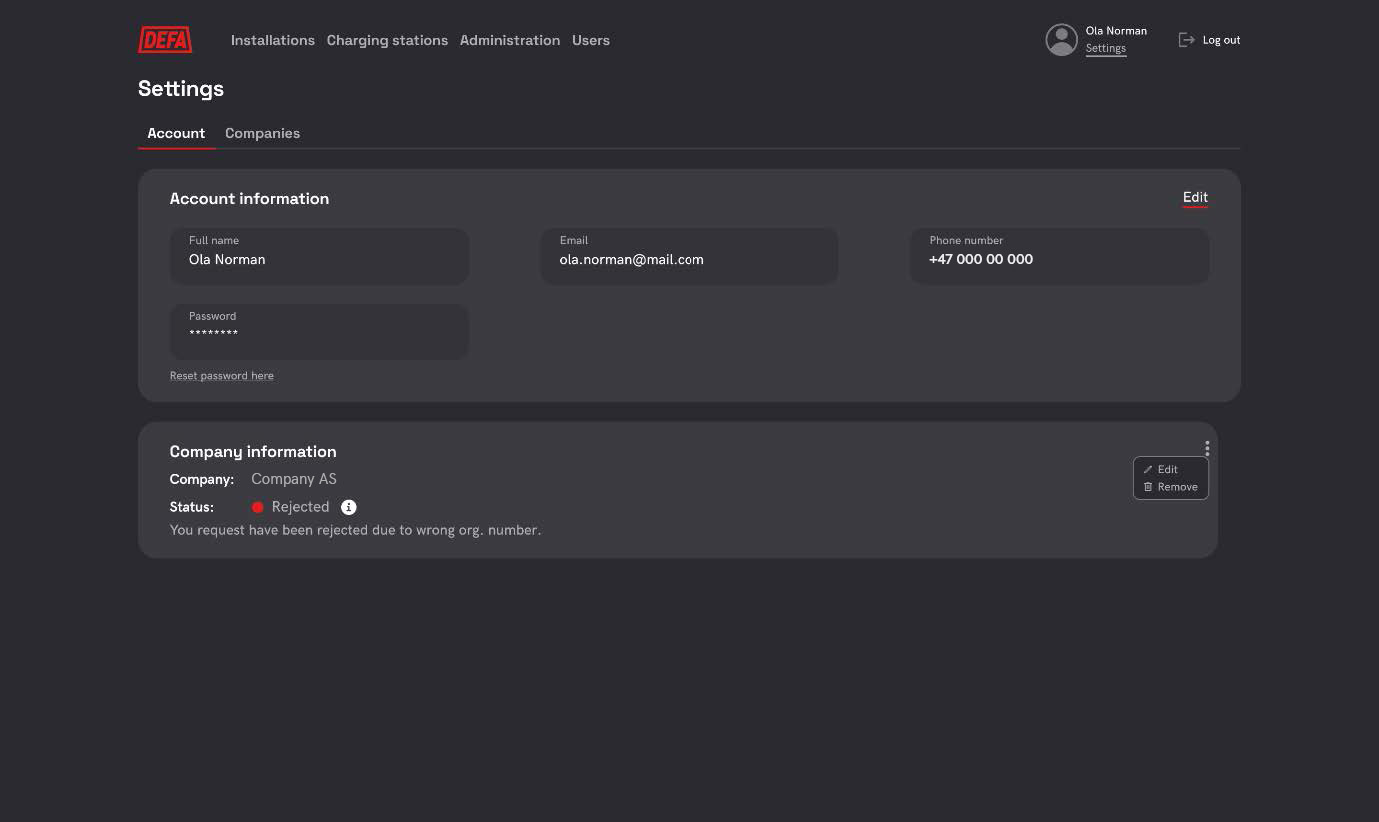
Received a rejected application? In the case of a company application being rejected we might see some details which have been incorrectly filled out. Don’t worry, we will inform you of what needs to be done.
- Go to your user profile page
- See the description of missing info below the rejected application.
- Click the edit button on the left side of the company information view
- Click edit
- Edit the incorrect information
- Click create
The application will be sent to us again for a new evaluation.
How to administrate users in your company? Go to this page


