
 Electrical preheating
 EV charging solutions
 Lighting
 Chargers and Inverters
 Security & Tracking
IoT Console – User registration
How it works:
A user is linked to a company, A company is linked to an installation, An installation is linked to one or more charging stations.
The company is defined by the company type you have access to.
There are different user types:
| Company types | Role definition |
|---|---|
| Partner | The wholesaler or distributor of the product |
| Charge Point Operator | The operator of which supports this charging station towards the CSMS |
| *Installer / Electrician | The installer or electrician who has installed the product |
The admin role is predefined and is the only role you can assign to users initially. Some roles may be created automatically based on the user or products action or assignment. I.e the Charging station will have an allocated Installer after the installer has edited the settings on the charging station. Regardless of backend connection of the charging station. The EVSE owner will be allocated once the handover invitation has been sent to the EVSE owner. The Charge Point Operator will have access to the charge point once the owner has assigned the charging station to the selected Charge Point Operator etc.
Suppose we are creating a new Charging facility. In that, Installers can plan the facility, set up, configure, Commission, test and verify, check communication, configure accessories (Balancer), etc. There might be a tech. support helping the installer remotely to configure the same settings as the installer. similarly, the Facility owner can assign ownerships to each charging station, set prices, authentication, tariff, charging times, priorities, etc. Then the EVSE Owners can set Authentication methods, RFID configurations, see settings, meter info, etc.
In the above example, there are multiple users of the application i.e., Installer, Partner tech support, Facility owner and EVSE owner. These are different roles of users of the application. They have their actions to be performed, and their actions should not be performed by other users. It means that the facility owner shall not be able to adjust the maximum charging current set by the installer.
There are exceptions where multiple user types may be able to do the same actions. i.e.
- Add RFID cards.
- See settings meter.
How to get access
To get access, you firstly need to have an account. Once your account is created can request access to a company. If the company exists from before you simply request access to the company and the company administrator will give you access. If your company doesn’t exist, you need to send a company application with the company information to get access. See 5.4 Send company application.
Login
For users who have already created an account.
Create an account
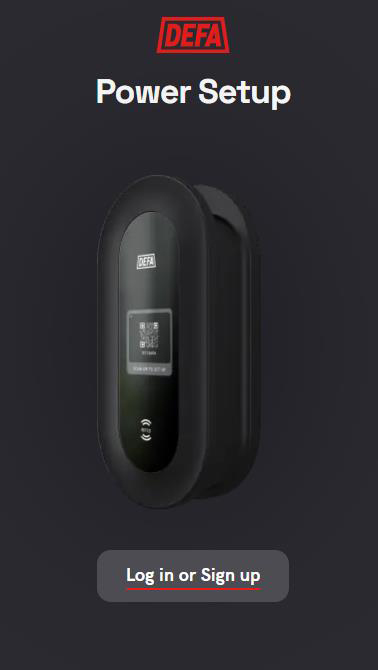
First create an user account. Click link or write https://console.defa.com/ in your browser.
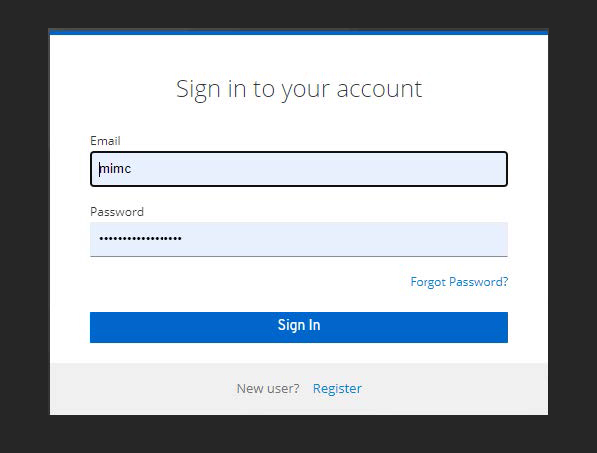
- Click login or sign up.
- Sign in with your email credentials.
- Click register.
- Enter you credentials and create the user.
- Go to your email and click the confirmation link sent to you.
Once your account is created verified you can apply to get access to the portal by one of the following options: - Go back to the portal and log in.
- Click you user profile on the top right corner of the page.

Below you account settings you can link a company to your profile.
For information about company registration go to this page


