
 Electrical preheating
 EV charging solutions
 Lighting
 Chargers and Inverters
 Security & Tracking
Set up DEFA Power
Warning! DEFA Power has to be installed by a certified electrician. This guide is intended for installers only.
This guide helps electricians install, configure, test, and hand over a DEFA Power charging station.
Before You Start:
- DEFA Power Setup App installed
- Charger powered ON
- Network details ready (Wi-Fi name + password if used)
- Owner’s phone number
- Charger ID (shown on charger screen)
The DEFA Power Setup app is the tool that installers use to complete a DEFA Power installation. The app is required to continue the guide described below. More information on how to download the app here.
Set up DEFA Power:
1
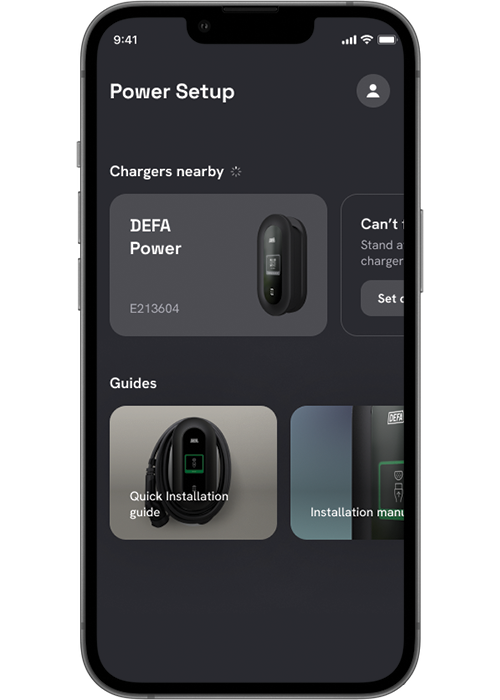
Pair with DEFA Power
- Open DEFA Power Setup App
- Select Chargers nearby
- Choose the correct Charger ID
- Accept pairing request
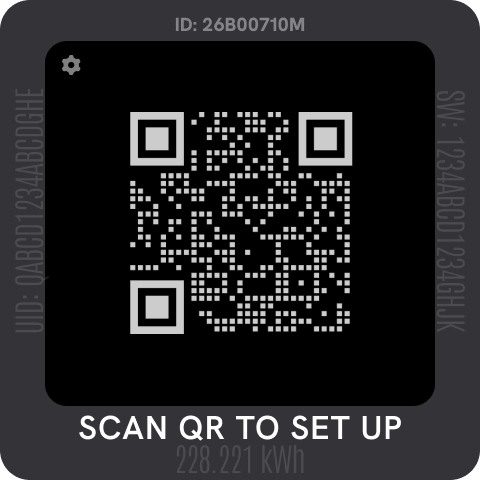
Check Cogwheel icon visible on charger screen (Setup Mode)
If you can’t connect:
- Switch fuse OFF → ON
- Wait for cogwheel icon to appear
- Stay close to the charger
2
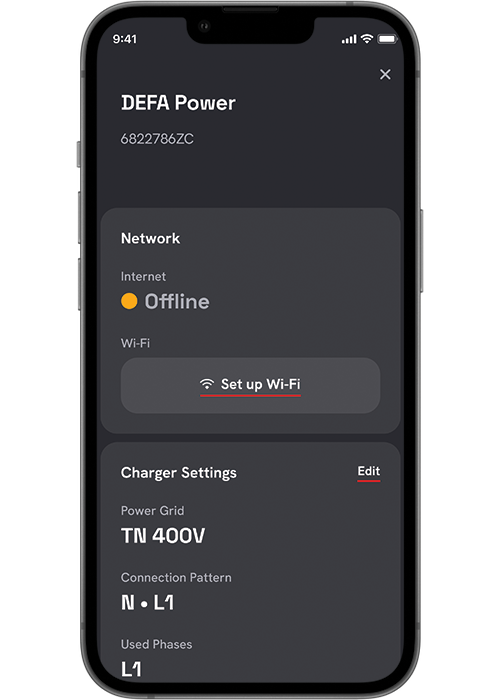
Connect Charger to Network
Choose ONE option:
Wi-Fi (most common)
- Select network
- Enter password
- Wait for Online confirmation
Ethernet
- Connect cable
- Appears automatically in dashboard
Cellular
- If you are connecting to Mobile Network, read more here.
- Can be enabled later by owner
⚠️ Important
For local load balancing, all devices MUST be on the same network.
For more information see network requirements: Click here
3
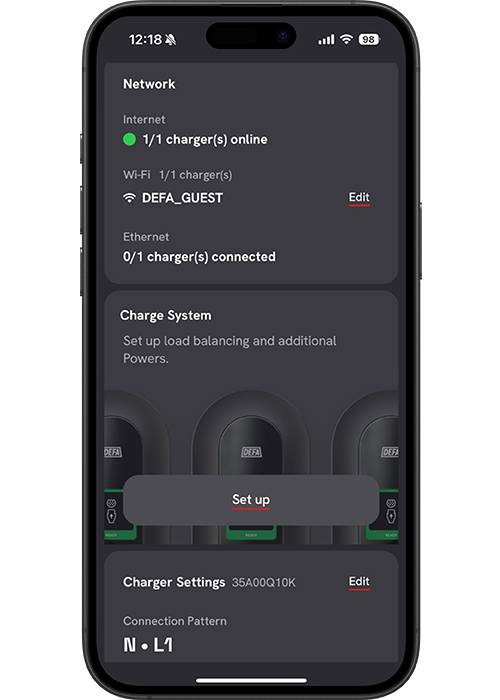
Edit Charger Settings
- Select charger
- Tap “Edit” on Charger Settings to edit settings on charger
If DEFA Balancer is installed, follow this link.
4
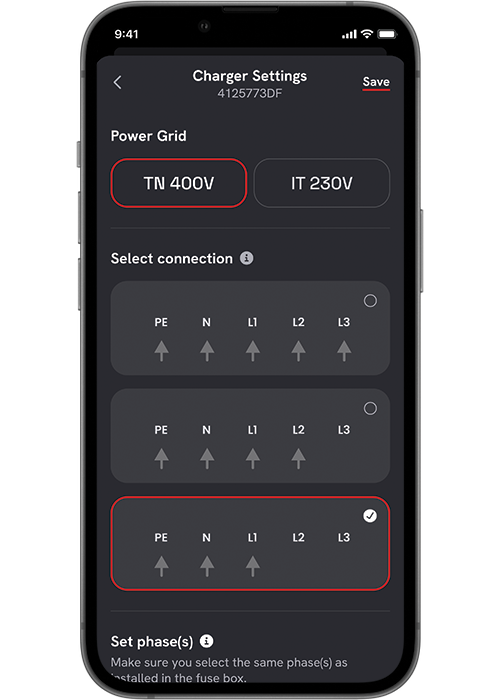
Select Power Grid Type
Choose:
- TN grid
- IT grid (e.g. Norway)
5
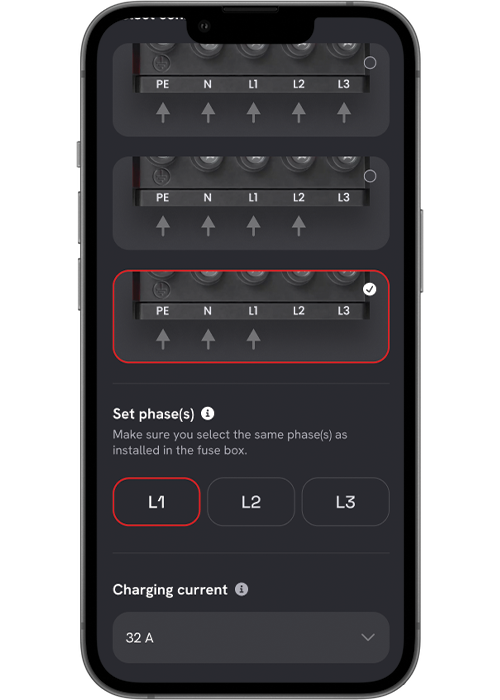
Select number of phases connected
- Choose actual connected phases
- Must match installation
- Required for correct load balancing
6
Set Maximum Charging Current
- Set according to upstream installation limits
- This becomes the charger’s maximum available current
7
Run Self-Test
The charger automatically verifies:
- Configuration
- Phase setup
- Current limits
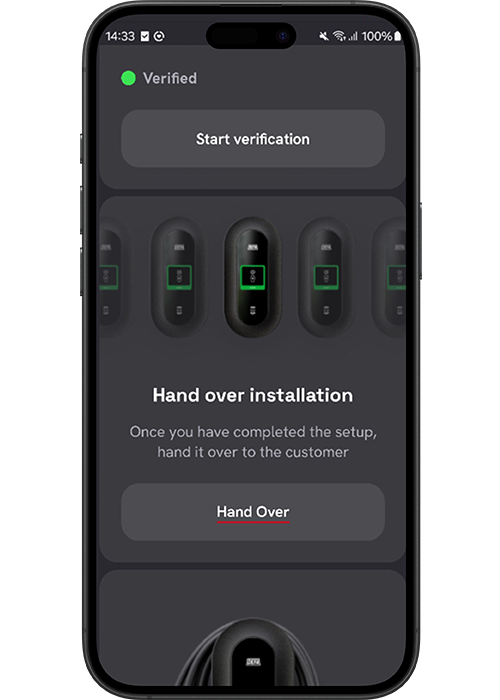
Success:
- “Verified” message appears
- Setup summary visible in app
If test fails, re-check electrical settings.
8
Complete Handover
- Tap Handover
- Select backend provider
- Tap Complete Setup
The charging station is now ready for use.
Published: January 5th, 2026


